Compare states side by side
Put the login form's normal and failure states in one workspace. This makes it easy to compare disabled fields, error messages and retry controls without recreating each state by hand.
;; In a namespace requiring [re-frame.story :as rf.story].
;; These variants ship in tools/story/testbeds/login_form/stories.cljc.
(rf.story/reg-workspace :Workspace.login-form/all-states
  {:doc "The five login states side by side."
   :layout :grid
   :variants [:story.login-form/idle
              :story.login-form/submitting
              :story.login-form/error
              :story.login-form/submitting-retry
              :story.login-form/authenticated]
   :columns 3
   :tags #{:docs}})
Open all-states under Workspaces in the login testbed's sidebar.
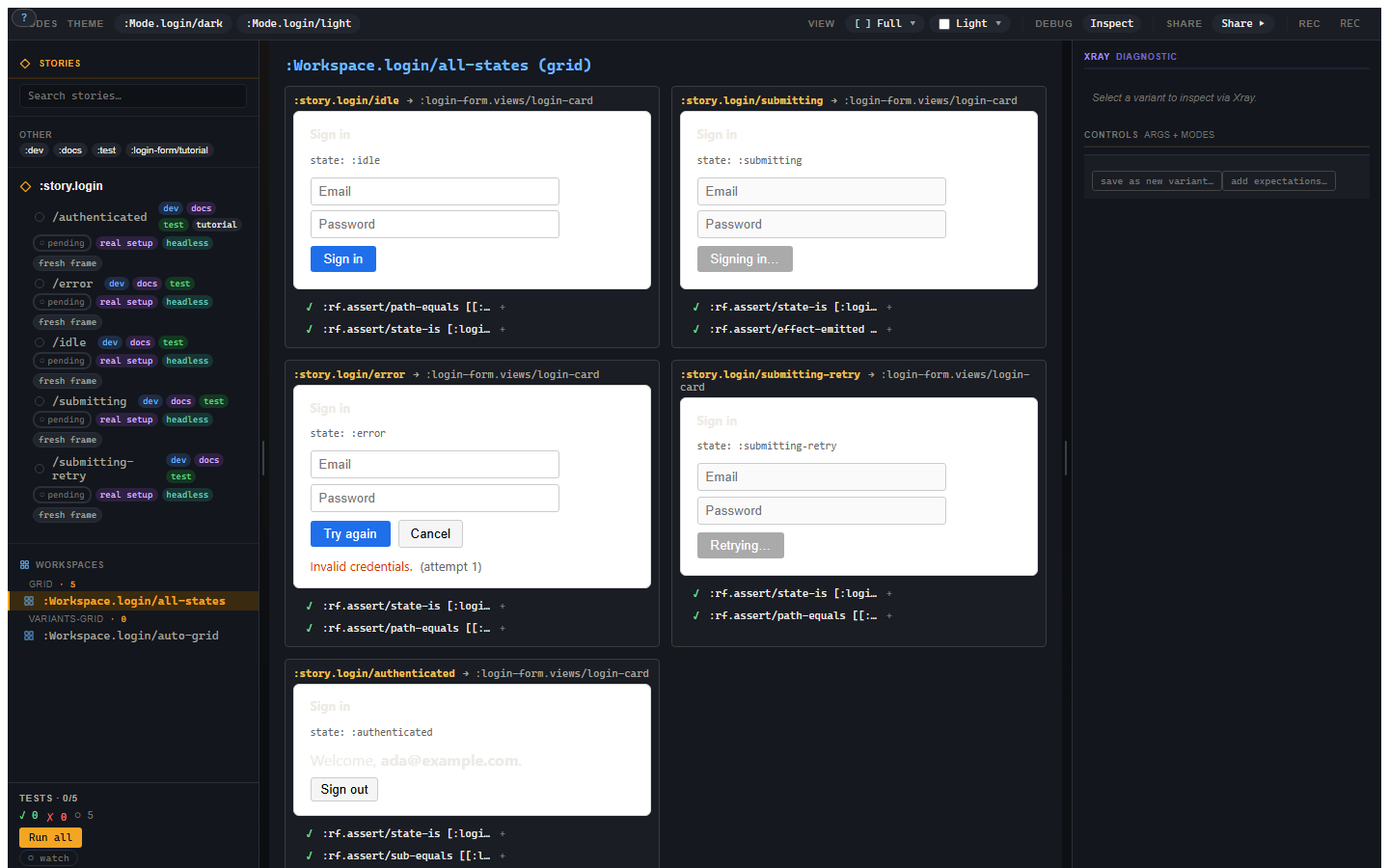
Five login states
| Variant | What to compare |
|---|---|
idle |
Empty enabled fields and the Sign in button. |
submitting |
Disabled fields and Signing in while the stub holds the request. |
error |
Error message, enabled fields and Cancel. |
submitting-retry |
Retrying label after a previous rejection. |
authenticated |
Welcome banner in place of the form. |
Each cell has its own frame and machine state. Try Cancel in the error cell: that cell returns to idle; the other four retain their state. Reopen the workspace to restore its declared starting states.
Frames isolate application state. The cells still share the page's CSS,
focus and portals. A dialog mounted into document.body appears outside
its cell. The workspace guide
explains these limits.
Workspaces
An explicit :grid preserves your chosen order. For a growing collection,
:variants-grid enumerates a parent's variants:
(rf.story/reg-workspace :Workspace.login-form/auto-grid
  {:layout :variants-grid
   :for :story.login-form
   :columns 3})
The workspace reference also describes
:tabs and :prose.
The bigger wall
The nine_states example compares Nothing, Loading, Empty, One, Some,
Too Many, Incorrect, Correct and Done for one todos view.
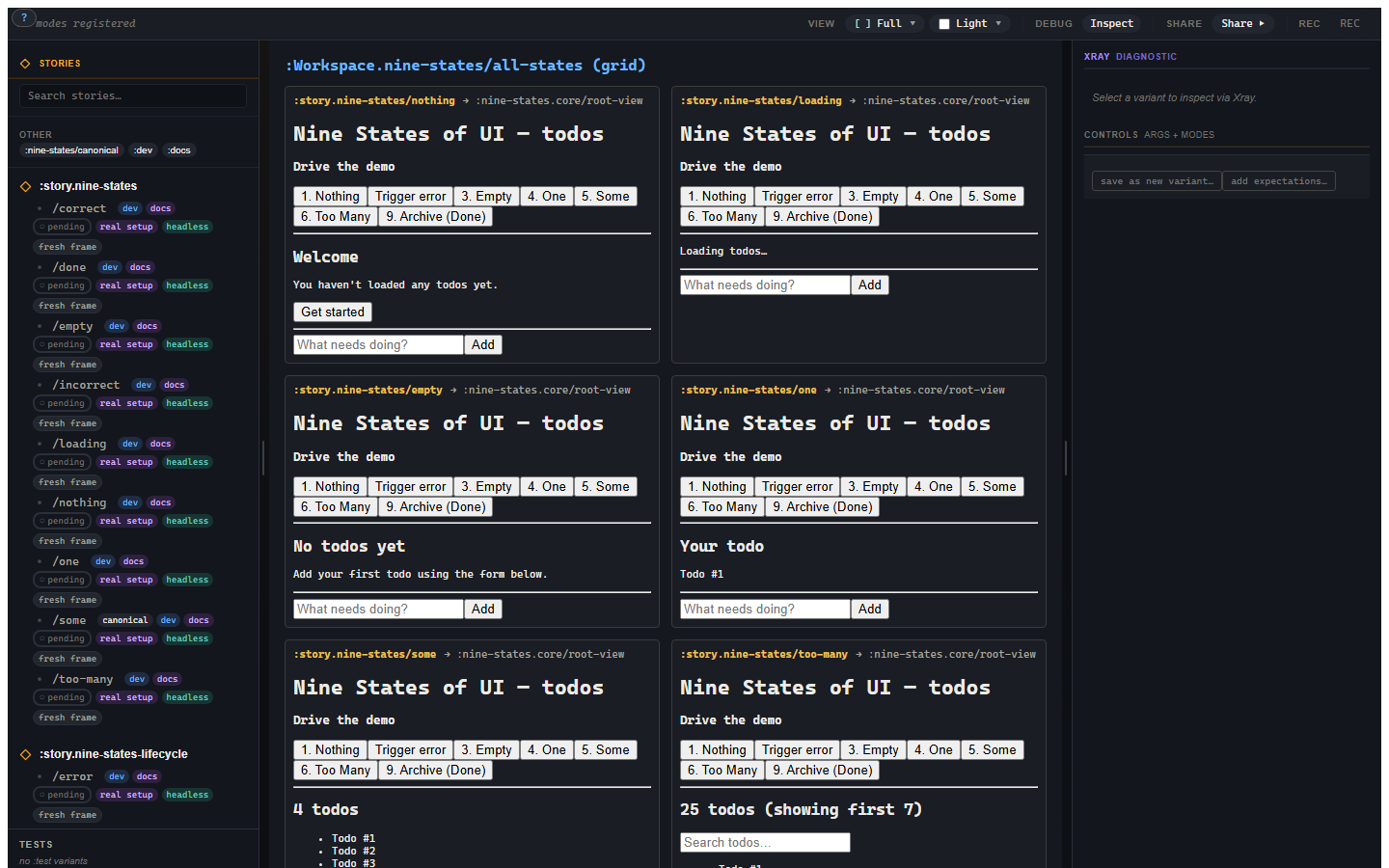
Scroll the workspace to compare the remaining cells. Each uses the same view with a different declared state.
Controls
For a selected variant, Controls edits view inputs and lets you keep a useful combination as a new variant.
Save the current state as a variant
Controls' save as new variant… creates a declaration extending the selected variant. Copy it into your stories namespace to keep it across reloads. This saves an authored state; promoting a run preserves an executed scenario and its expectations.
Troubleshooting
| Symptom | Cause | Fix |
|---|---|---|
:rf.error/workspace-shape |
A layout's required field is missing, or both :for and :variants were given |
A grid needs :variants; an automatic grid uses one source of variants. |
| Cells are empty or show an unknown view | Referenced variants or their view were not registered | Require their namespaces before opening the workspace. |
| Cell interactions affect each other | The view hardcodes an internal frame provider | Use the variant frame, or review such views serially with :variants-grid :isolation :shared. |
| Text or colours differ from the app | The app supplies inherited styles outside the view | Supply those styles through a decorator. |